3.1 Keyword search
Purpose
Infoshare offers a search engine which provides fast and simple access to time series data by returning results relevant to the search term entered in the search box.
Search can be accessed from any point within Infoshare by clicking on Search in the main navigation menu.
Navigation
The Search page is available on the Search main menu tab.

Figure 3.1 - Search navigation
Page example
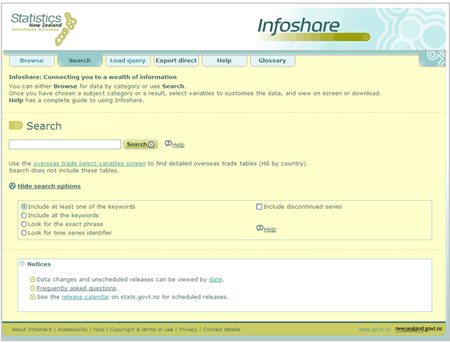
Figure 3.1.1 - Infoshare search page
Descriptions
The 'Search' page functions and their descriptions are listed below.
 - This input field allows you to type in your search criteria. Minimum 3 characters.
 - This button starts the search for all tables that match the search criteria.
Overseas trade select variables screen - This link opens the overseas trade select variables page. (See section 4.3: Overseas trade tables for more information.)
 Show/Hide search options - This link shows and hides the search options (described below) from view.
Include at least one of the keywords - Performs a search for all of the words in the search box and will return results that contain one or more of the keywords.
Include all the keywords - Performs a search for all words entered into the search box and will only return results that contain all words.
Look for the exact phrase - Performs a search for the exact word or words entered in the search box.
Look for time series identifier - Performs a search for time series identifiers.
Include discontinued series - Infoshare contains some tables that are no longer updated. These are referred to as discontinued tables.
By default discontinued tables are omitted from the search results. If you want to include discontinued series in your search tick the box 'Include discontinued series'.
Steps
To perform a search:
- On the 'Search' page type in the words you wish to search for in the search box.
- Click the Search button. The 'Search results' page will be displayed.
- To customise a table click the table name or the Select variables link in the table metadata. (See section 4: Select variables for more information.)
Tips
Type in your most important words (keywords) - the search engine looks for the words you type in the search box and will return results that have all those words included in the table. You do not need to put in whole sentences or ask a whole question. The search engine only needs the keywords you are looking for. For example, if want to find information for 'total New Zealand imports of tea' you can just enter 'tea imports'.
Complete words are better - the more specific you can be, the better the search result. Accommodation will return results relevant to accommodation only whereas 'acc' could potentially return other non relevant information.
Capitals do not matter - Infoshare search ignores capital letters. 'IMPORTS' produces the same result as 'imports'.
Special characters - if special characters (such as #, @, !) are entered in the search box for keyword searches then the 'Your search did not return any results' message will be displayed.
Finding information - if you cannot find the information you were looking for using 'Search', then try 'Browse'.
Too many results returned - if you get too many results, refining your search will reduce the number of results.
Search in last search results - to refine your search you can search within the results from the initial search.

3.2 Keyword search results
Purpose
The search results return the most relevant tables that match the keyword(s) or phrase that you entered in the search box. Up to 20 results will be displayed per page.
Page example
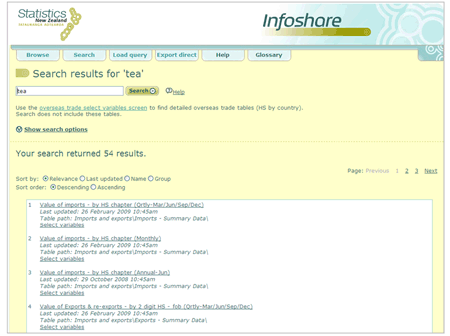
Figure 3.2 - Infoshare search results page
Descriptions
The 'Search results' page functions and their descriptions are listed below.
- This input field allows you to type in your search criteria. Minimum 3 characters.
- This button starts the search for all tables that match the search criteria.
Overseas trade select variables screen - This link opens the overseas trade select variables page. (See section 4.3: Overseas trade tables for more information.)
Show/Hide search options - This link shows and hides the search options from view.
Note: By selecting the 'Look for time series identifier' option, 'Include discontinued series' and 'Search in last search results' options are disabled.
Search in last search results - Performs a new search within the current results only.
Relevance - Sorts the results in order of relevance against search criteria.
Last updated - Sorts by last updated date with the latest first.
Name - Sorts by table name.
Group - Sorts by group name. (The groups represent the different data sources or surveys from which the database tables are derived).
Descending - Variables are sorted in descending order from Z to A, or highest to lowest, or latest to earliest.
Ascending - Variables are sorted in ascending order from A to Z, or lowest to highest, or earliest to latest.
Previous - Click to display the previous page of results.
Page: 1 2 3 4... - Click to view a specific result page.
Next - Click to display the next page of results.
Technical information
Metadata
the returned results include metadata that provides information for when the series was last updated, (for example 'Last updated: 12 February 2009 10:45am') and browse path of the same table, (for example Table path: Tourism\Accommodation Survey\).
You can customise and format a table by clicking the table name or clicking the Select variables link in the table metadata. The 'Select variables' page will then be displayed. (See section 4: Select variables for more information.)
How results are ranked
the search tool has been designed to return the most relevant results in relation to the keywords or phrase entered in the search box. Ranking is based on the following:
- table name contains the keyword.
- group name contains the keyword.
- variable title contains the keyword.
- values for variables contain the keyword.
- other metadata (for example footnotes) contain the keyword.
For example, when searching for the keyword 'accommodation', a table with the keyword in the table name will rank higher than a table with the keyword in the group name.
1. Table name
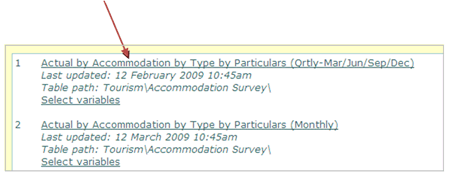
Figure 3.2.1 - Search results page (example of #1 ranking for table name 'accommodation')
2. Group name
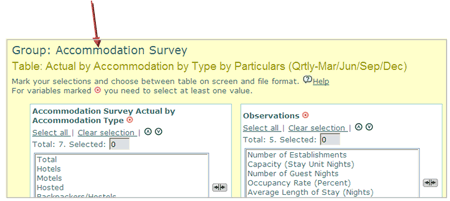
Figure 3.2.2 - Select variables page (example of #1 ranking for group name 'accommodation')
3. Variable title
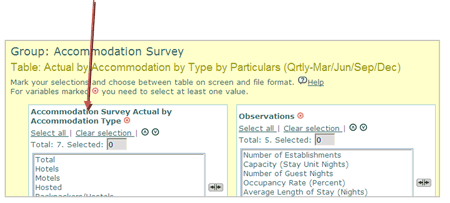
Figure 3.2.3 - Select variables page (example of #1 ranking for variable title 'accommodation')
4. Variables
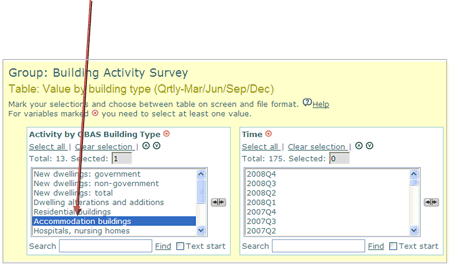
Figure 3.2.4 - Select variables page(example of #6 ranking for within variables 'accommodation')
5. Other metadata
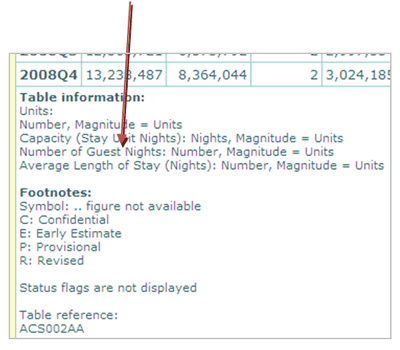
Figure 3.2.5 - View table page (example of #4 ranking for other metadata 'Guest nights')
3.3 Time series identifier search
Purpose
The 'Search' page allows you to search using various criteria including using a time series identifier.
When using the 'Look for time series identifier' option on the 'Search' page the results are returned with the option to 'Select time series identifiers' as well as 'Select variables'.
Navigation
To perform a search for a time series identifier, select the Look for time series identifier radio button on the main 'Search' page. In the 'Search' field type at least the first three characters of your time series identifier followed by an '*', or type in the full series identifier with a '+' replacing a single character within the identifier and click search.
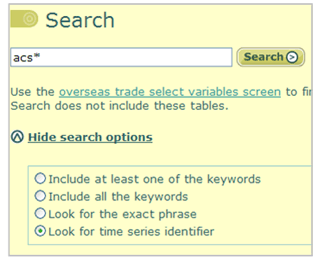
Figure 3.3 - Search for time series identifier
Page example
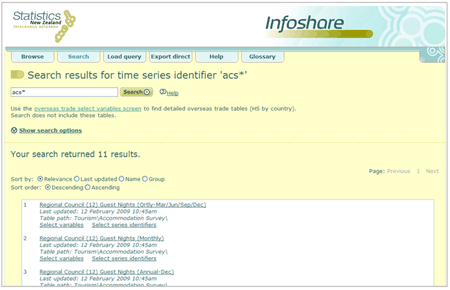
Figure 3.3.1 - Search results for time series identifier page
Descriptions
The Search for time series identifier page functions and their descriptions are the same as those listed for the 'Search'.
Steps
To search using a time series identifier:
- On the 'Search' page, select the Look for time series identifier radio button.
- In the search box type in
 the series identifier you want to search for,
the series identifier with a '+' wildcard replacing one of the characters, or
at least the first three characters of the series identifier followed by a '*' wildcard.
- Click the Search button.
If you use a '+' wildcard, all tables with series identifiers that meet the search criteria will be returned, with any single character replacing the '+'.
If you use a '*' wildcard, all tables with series identifiers that begin with the characters you entered will be returned.
- To customise or format a table using the standard variables and values, click the table name or the 'Select variable' link in the table metadata. To customise or format a table using the series identifiers click the 'Select series identifiers' link in the table metadata.
Note: Only series identifiers that match your search criteria will be listed. (See section 4: Select variables for more information).
- Alternatively:
sort your returned results by selecting the relevant Sort radio button.
perform a new search using another time series identifier in the Search field and select the search option button. You may type in a minimum of the first three characters of the identifier, followed by an (*) and this will return all identifiers starting with these characters.
search within the last search results by clicking on the associated checkbox, and enter one or more keywords or phrase in the Search field and select the search option button.
Tips
Finding information - if you cannot find the information you were looking for using 'Search', then try 'Browse'.
Too many results returned - if you get too many results, refining your search will reduce the number of results.
Search in last search results - to refine your search you can search within the results from the initial search.
 Infoshare help (PDF, 1.9MB)