Purpose
The 'Export direct' function allows you to download time series identifier data from Infoshare in csv file format, by running a time series identifier search file stored on your computer.
Navigation
The Export direct page is available on the Export direct main menu tab.

Figure 7.1 - Export direct navigation
Page example
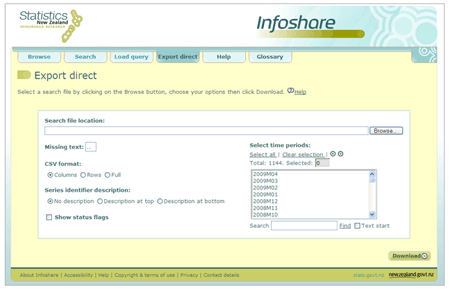
Figure 7.1.1 - Export direct page
Descriptions
The Export direct functions and their descriptions are listed below.
Search file (.sch) - A file containing a list of series identifiers that allows you to retrieve the same information on a regular basis. A new search file can be created when searching using 'Look for time series identifier' option and then selecting the 'Search file (.sch)' download option from the dropdown list. Existing search files created using INFOS can also be used. Please note: Search files should not contain wildcard characters for example '*' or '+'. Maximum allowed 100.
Search file location - This is the location on your computer where the search file you wish to run is stored.
Browse button - Opens a Windows Explorer window that allows you to browse and select the file you wish to run. Only files with a .sch suffix may be selected.
Missing text - Missing, suppressed or confidential data in the output is indicated by the text shown in this box.
CSV Format - If you select:
 Columns - series are in separate columns across the table.
Rows - series are in separate rows down the table.
Full - years are placed in a column down the page and months or quarters are placed in a row across the page. Each series is displayed as a separate table.
Series Identifier Description - If you select:
No description - no description for the series identifier is displayed
Description at top - both the series identifiers and descriptions are displayed above the table.
Description at bottom - both series identifiers and descriptions are displayed below the table.
Show status flags checkbox - Ticking this checkbox will display the data status flags in separate columns in your table.
Select time periods - Time periods available for selection. At least one time period must be selected.
Clear selection - Un-selects any selected time periods in the list.
Select all - Selects and highlights all time periods in the list.
Search - Enter the text you wish to search for then click 'Find'.
Text start checkbox - Tick the box to find all time periods with the text entered in the search box.
Total - This field displays the total number of time periods available.
Selected - This field displays the number of time periods you have selected.
Steps
To download data using a search file and the 'Export direct' function:
- On the 'Export direct' page, click the Browse button to open a Windows Explorer window. The 'Choose file' window will display as shown below.
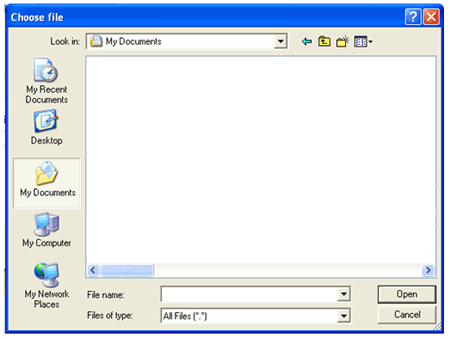
Figure 7.1.2 - Choose file window
- Browse the directory structure to find the search file you wish to use. Search files have the suffix .sch.
- Highlight the search file you wish to use and click Open. The 'Export direct' page will show the search file you have just selected in the search file location field.
- Select the format you want for the csv file.
- Select the 'Series identifier description' option you want.
- If you wish to include status flags, click on the Show status flags checkbox.
- Select one or more time periods by either:
Click 'Select all' to select all time periods in the list.
Holding down either the SHIFT or CTRL key on your keyboard and highlighting the relevant time periods by scrolling up or down the time period list.
Type the time period required in the 'Search' field and click the Find link.
- If you wish to clear your selections, click the Clear selection link.
- Click Download to download the time series included in your search file.
- If you have clicked Download without selecting a search file the following message will be displayed indicating that you have not selected a search file.
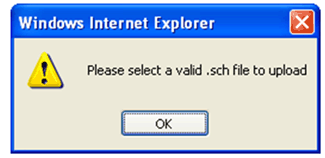
Figure 7.1.3 - Prompt window to select file
Click OK to acknowledge the message. Repeat steps 1-8 and click Download.
- A Windows 'File Download' window will be displayed.
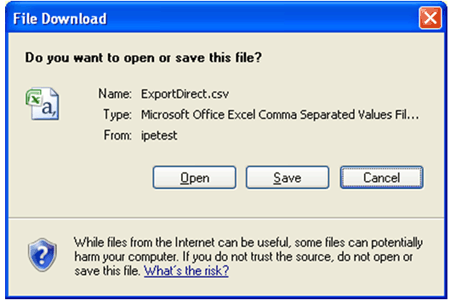
Figure 7.1.4 - Download window
- Click:
Open if you wish to display your data in an Excel worksheet.
Save if you wish to save your data to your computer.
Cancel to return to the Export direct page.
- If you have selected the Windows 'Open' button, a new window opens in Excel displaying the Infoshare data for the time series identifiers in the search file and the time periods selected on the Export direct page.
- You can save the Excel spreadsheet and associated data to your computer using the Excel functions available.
 Infoshare help (PDF, 1.9MB)