Purpose
The 'Load query' function allows you to retrieve data from Infoshare by loading and running a previously saved query stored on your computer and displays it on the screen.
Navigation
The Load query page is available on the Load query main menu tab.

Figure 6.1 - Load query navigation
Page example
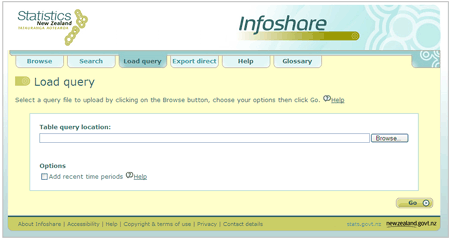
Figure 6.1.1 - Load query page
Descriptions
The Load query functions and their descriptions are listed below.
Table query file (.tqx) - A saved Infoshare table that can be re run using 'Load query'.
Table query location - This is the location on your computer where the query is stored. To find the location click the Browse button.
Browse button - Opens a Windows Explorer window that allows you to browse and select a previously saved query file with a .tqx suffix.
Add recent time periods checkbox - Ticking this checkbox allows you to update your table with recent time periods that have been loaded to Infoshare since your query was last saved.
Steps
To load and run a query:
- On the 'Load query' page, click the Browse button to open a Windows Explorer window. The 'Choose file' window will be displayed.
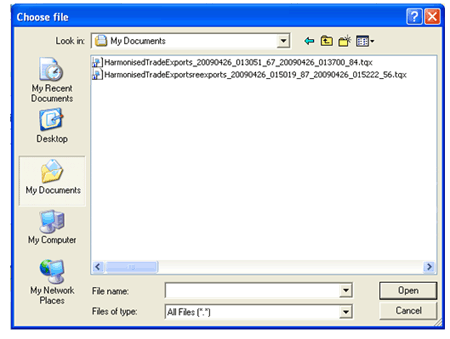
Figure 6.1.2 - Choose file window
- Browse the directory structure to find the query you wish to use. Query files have the suffix .tqx
- Highlight the Table query file you wish to use and click Open. The 'Load query' page will display with the query file you have just selected shown in the Table query location box.
- If you wish to update your table since your query was last saved, click on the checkbox Add recent time periods.
- Click Go.
- If you have clicked Go without selecting a query file, the system displays the following message, indicating that you have not selected a query file to upload.
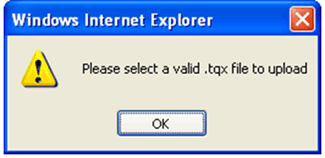
Figure 6.1.3 - Windows prompt select file
Click OK to acknowledge the message. Repeat steps 1-4 and click Go.
- The 'View table' page will display a table containing the data retrieved for your query. (See section 5: Table layout for more information.)
The limit is restricted to 50,000 cells for viewing on screen.
 Infoshare help (PDF, 1.9MB)